01
Open and browse
Open an image or folder, then use thumbnails and previous/next controls to browse photos and videos.
WePic brings photos, text, and video into one window.
Play Live Photos, select text, and translate images—with familiar controls on either platform.
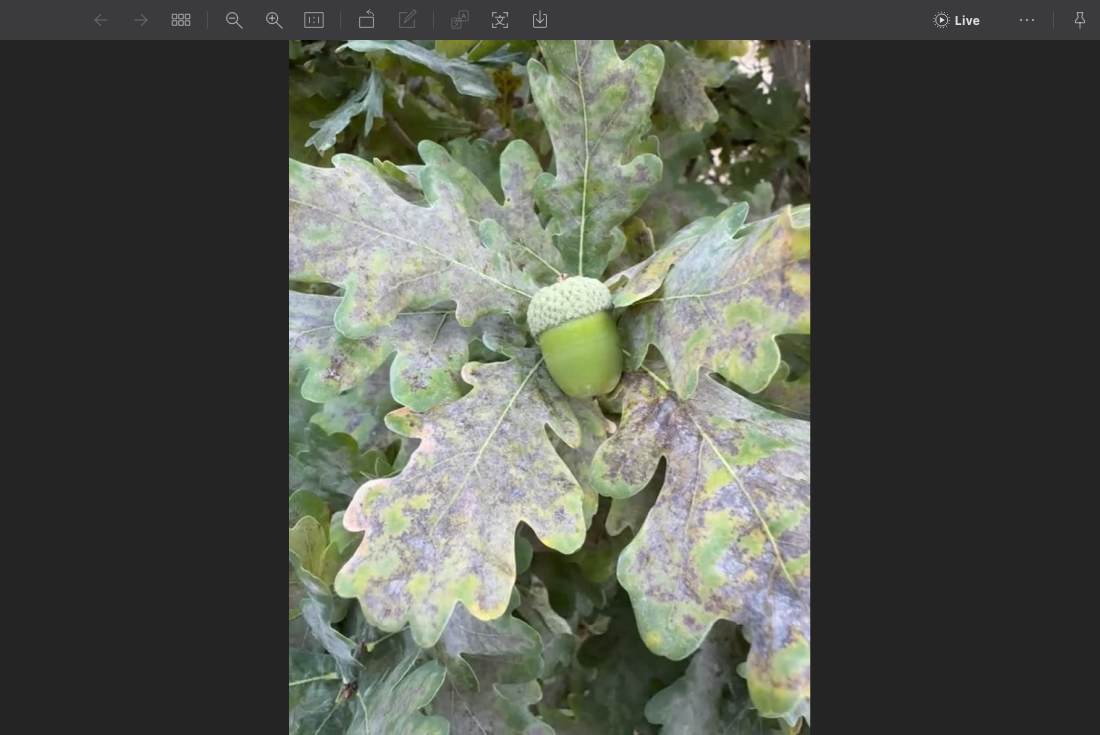 View full screenshot ↗
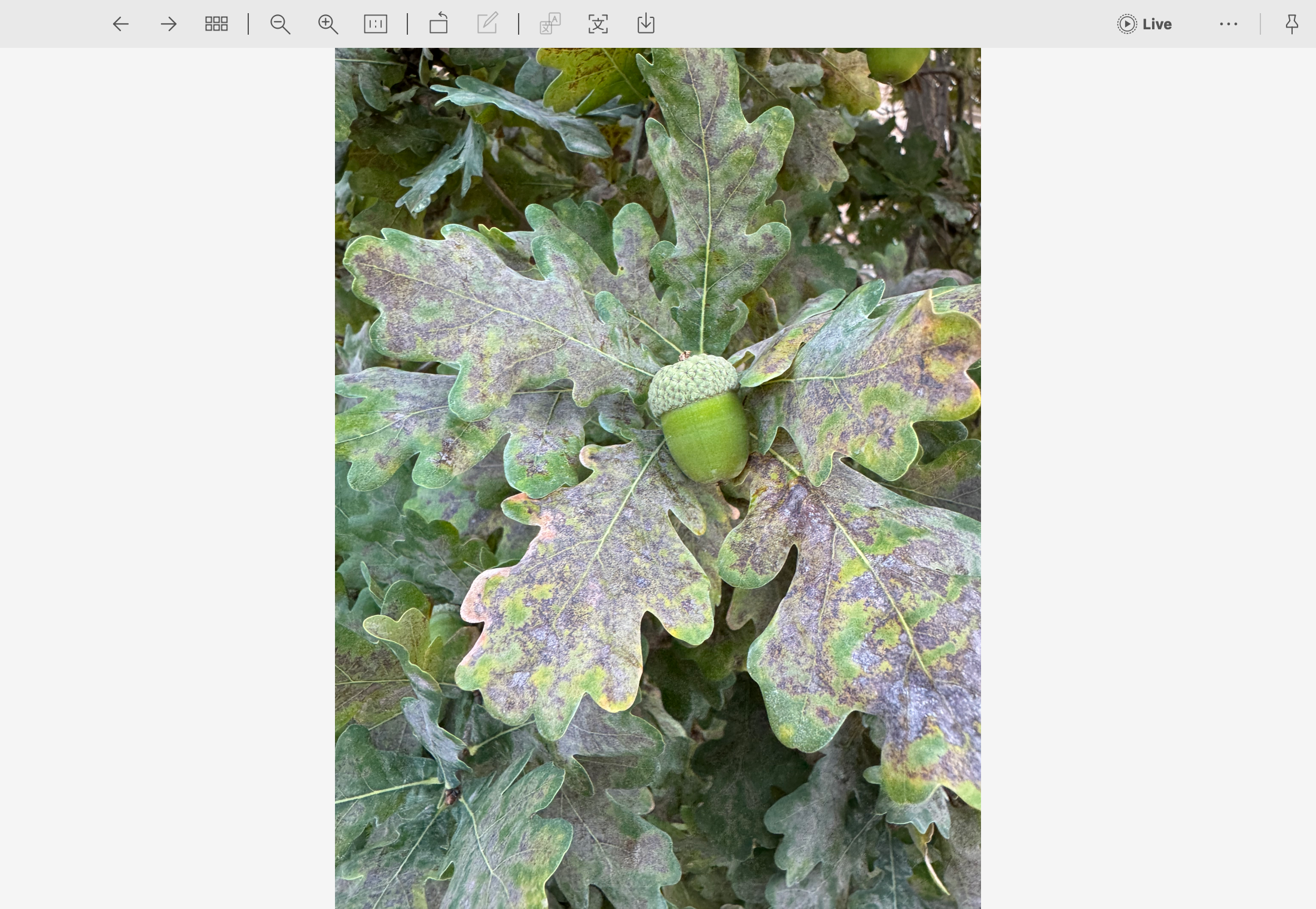 View full screenshot ↗
Actual WePic capture · Original interface and colors · Click to enlarge
This is a functional web example. The screenshots show the actual desktop interface.
Actual WePic captures and sample video Original screenshots · Click to enlarge
Browse images, select text, translate, and play media with the same core workflow on Windows and macOS. Your everyday tools stay in familiar places.
Open an image or folder, then use thumbnails and previous/next controls to browse photos and videos.
Select text directly on an image, or copy it all from the recognition sidebar. The same familiar approach on both platforms.
Live Photo controls, playback, and translation follow a consistent workflow, so switching platforms feels familiar.
Core workflows are consistent. Window controls, system permissions, and support for some formats vary by platform. Cross-platform support does not mean automatic file syncing.
Open an image, then choose whether to copy text, play media, or translate.
Drop in an image or open a folder. Find content through thumbnails and browse with previous and next controls.
Select image text or play a Live Photo or video. For AI translation, first configure your service URL, model, and API key in Settings.
Copy selected text, save a translated image, or export a Live Photo’s original video or current frame for your next task.
Bring Live Photos to life, copy text from images, translate what you read, and browse photos alongside videos.
Moving photos to your computer should not freeze the moment. Open a Live Photo and click Live to replay the action around the shutter.
View full screenshot ↗View full screenshot ↗Actual WePic capture · Original interface and colors · Click to enlarge
This is a functional web example. The screenshots show the actual desktop interface.
Stop retyping screenshots, scans, and documents. Drag to select words or double-click a line, just as you would on a web page.
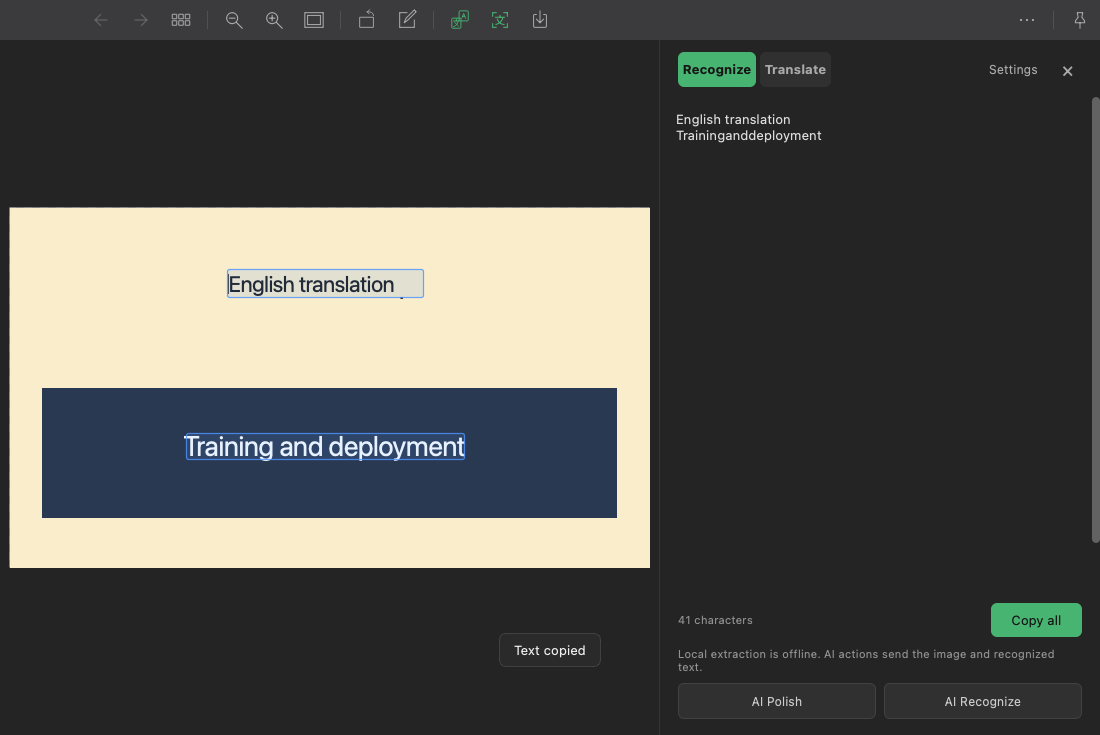 View full screenshot ↗
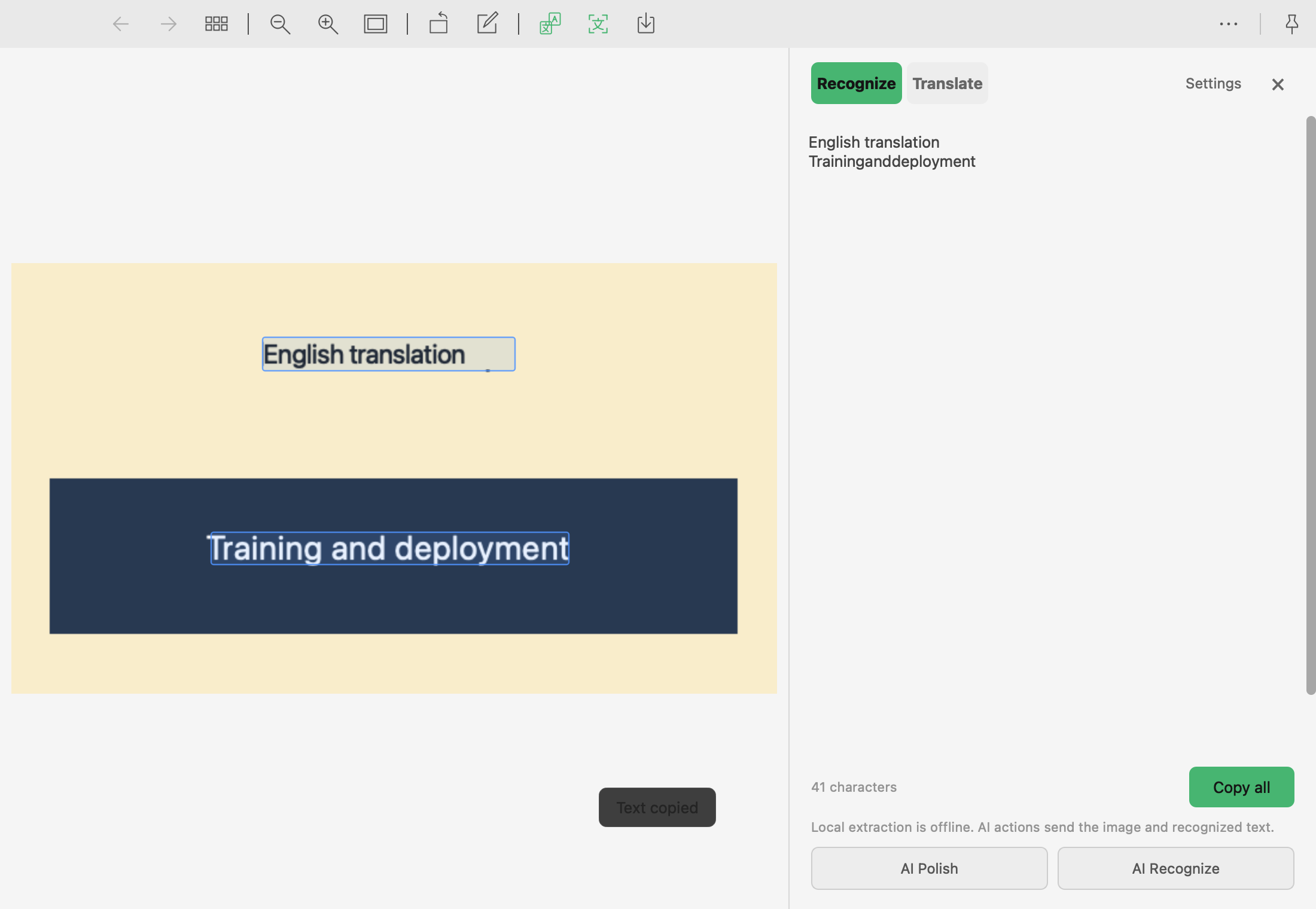 View full screenshot ↗
Actual WePic capture · Original interface and colors · Click to enlarge
This is a functional web example. The screenshots show the actual desktop interface.
A LITTLE EVERYDAY INSPIRATION
Good ideas start with a little curiosity.
Explore. Create. Repeat.
Read translated text directly in foreign-language screenshots, instructions, and charts. Switch between original and translated views, then save the translated image to share.
View full screenshot ↗View full screenshot ↗Actual WePic capture · Original interface and colors · Click to enlarge
This is a functional web example. The screenshots show the actual desktop interface.
A LITTLE EVERYDAY INSPIRATION
Good ideas start with a little curiosity.
Explore. Create. Repeat.
Browse photos and videos in the same folder without switching apps. Move to the next item naturally and play videos right where you are.
Sample video · Browser playback controls, not a recording of the desktop app
Crop images, draw arrows, add text or mosaic, undo changes, and save a copy.
Pause GIFs and animated WebP images, step through frames, and export the current frame.
Natural sorting, thumbnails, zoom, and rotation make it easier to find assets and inspect details.
Choose a light or dark theme and an accent color. Switch between English and Chinese interfaces.
The actual desktop interface: one icon toolbar, a dark canvas, and OCR and translation panels that open when needed. Screenshots show the English UI.
View full screenshotActual English desktop interface, using sample text for testing.
The actual desktop interface: one icon toolbar, a dark canvas, and OCR and translation panels that open when needed. Screenshots show the English UI.
View full screenshotActual English desktop interface, using sample text for testing.
Change computers without relearning your everyday workflow.
Copy the words you need from screenshots and scans into documents, emails, or chats.
For getting things doneExplore images in natural order, find assets through thumbnails, and view photos and videos in the same window.
For curious creatorsOpen supported Live Photos and local videos. Play the moment, export the original video, or save a frame.
For the moments you loveImage viewing and OCR run locally. Extracting text does not require uploading your pictures.
Connect to your configured service only when you choose AI recognition, refinement, or translation.
A little more polish each time you open it.
View latest release notesWePic is a desktop image viewer for Windows and macOS with a consistent core workflow across both platforms. Browse photos, select and copy text, play Live Photos, translate images in place, and watch local videos.
Everyday viewing and OCR run locally. When you choose AI recognition, refinement, or translation, the required image or recognized text is sent to your configured service.
WePic supports JPG, PNG, WebP, GIF, SVG, HEIC, HEIF, AVIF, and more. It also supports Apple Live Photos, some Android motion photos, and LIVP files. Compatibility depends on how the photo is packaged.
macOS installers are available for both Apple Silicon and Intel, requiring macOS 13.4 or later. Windows packages support Windows 10 version 1809 or later, with both 64-bit and 32-bit installers available.
Yes. Add a compatible service URL, model, and API key in WePic Settings. Pricing and data handling depend on your provider. Everyday viewing and local OCR do not require an API key.
Check for updates in Settings → About, or install manually from this website. Mac updates verify the publisher’s own signature and file integrity. The current installer is not Apple Developer ID signed or notarized.
 DOWNLOAD WEPIC
A familiar way to view, select, translate, and play.
M-series chips · ARM64
Download Apple Siliconv0.1.19Intel processor · x86_64
Download Intelv0.1.19Not sure which to choose? Open Apple menu → About This Mac and check Chip or Processor.